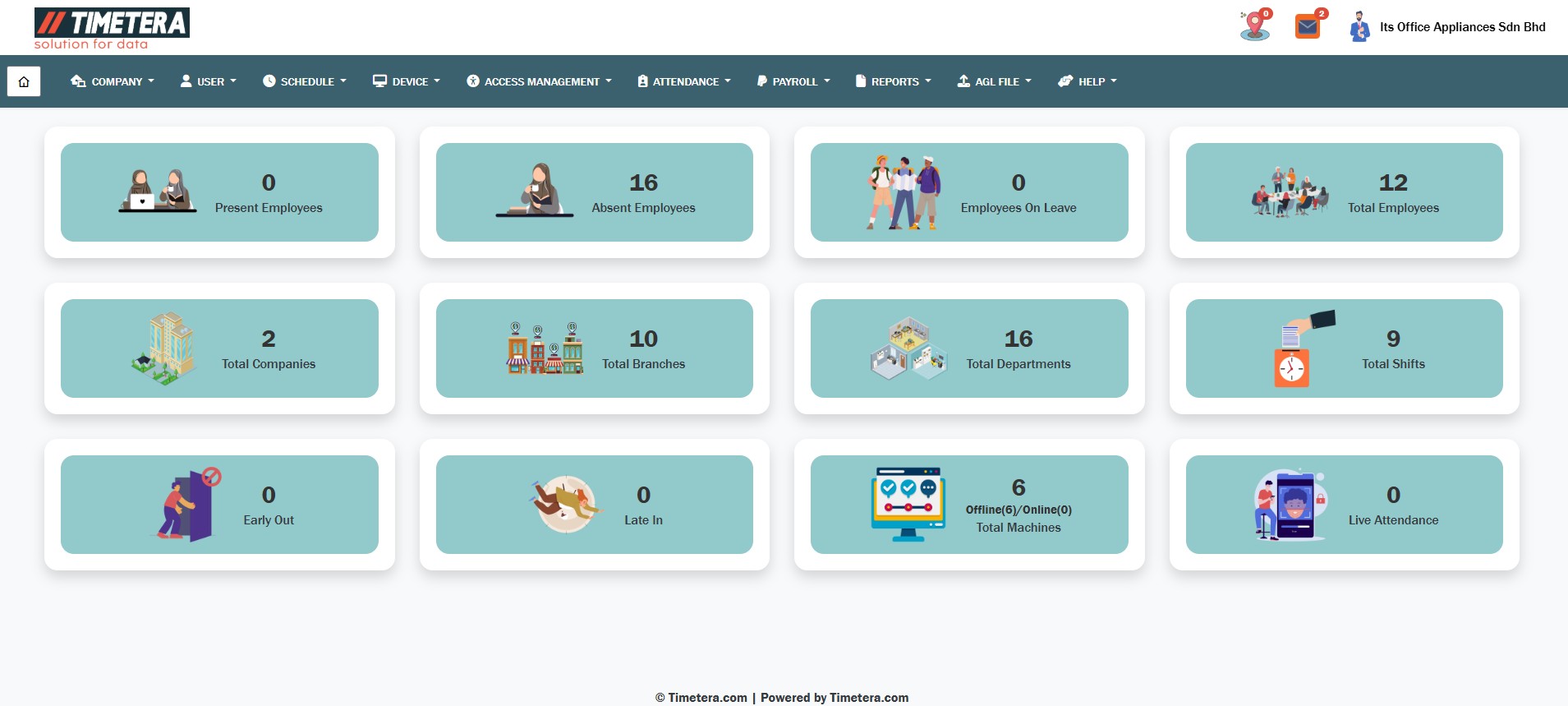
After logging in to the system, you will be directed to the main dashboard.
Follow the steps below to generate and print the attendance report.
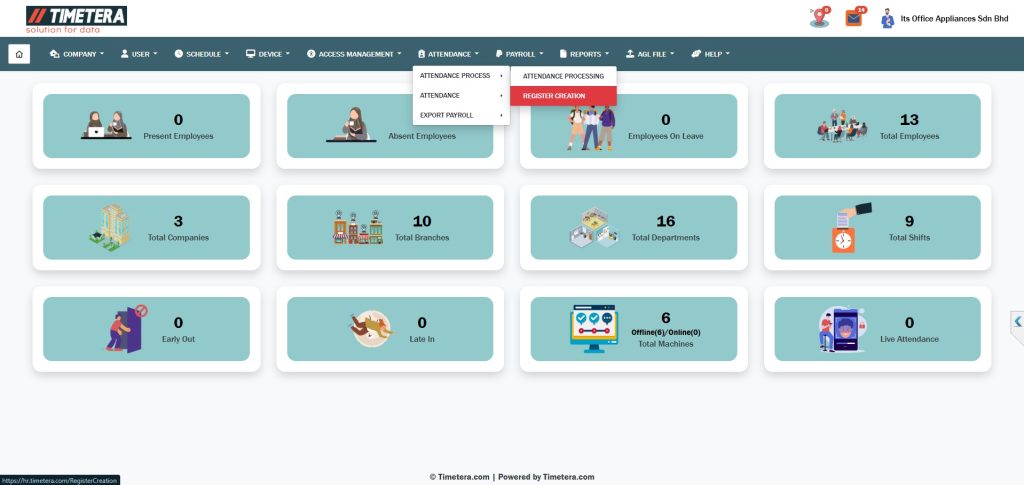
Step 1 : Access Register Creation #
From the top menu, navigate to:
Attendance > Attendance Process > Register Creation.
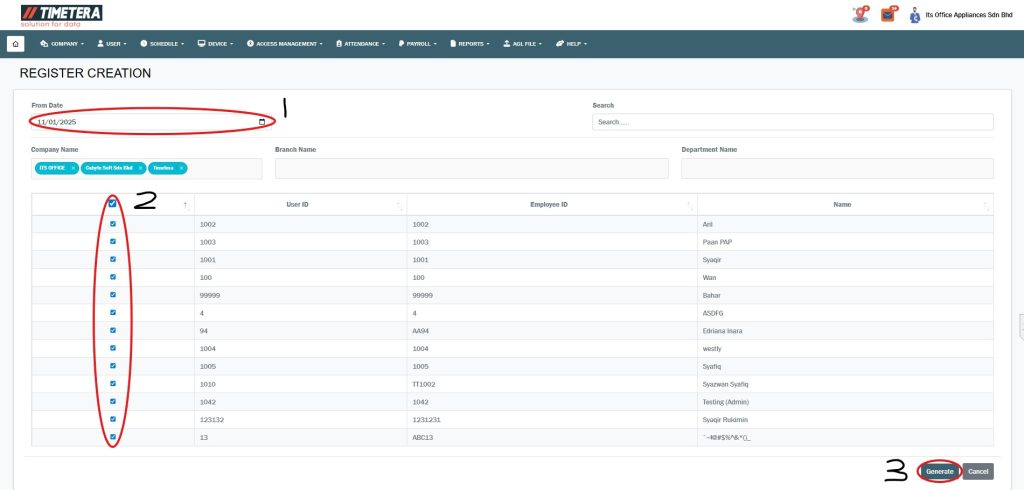
Step 2 : Generate Register Creation #
- Select the Date From.
- Select the User.
- Click Generate.
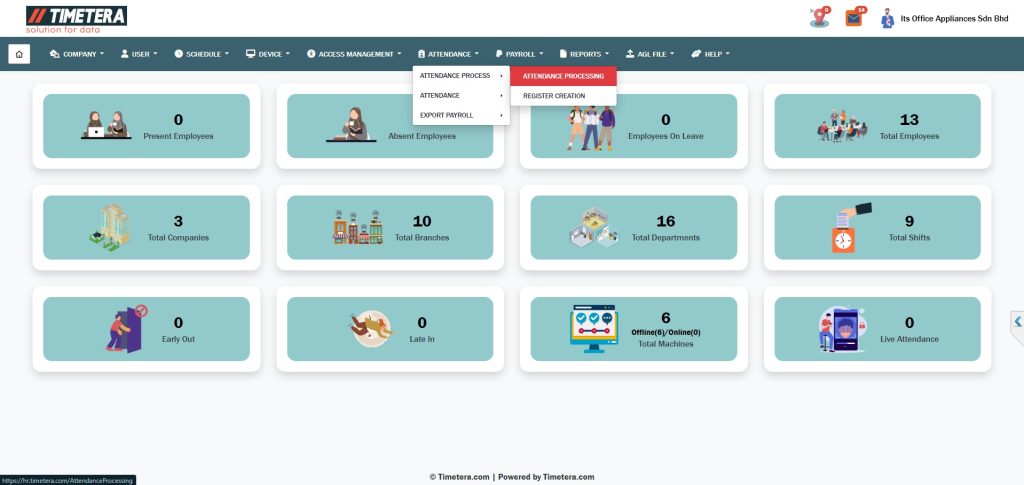
Step 3 : Access Attendance Processing #
Navigate to:
Attendance > Attendance Process > Attendance Processing
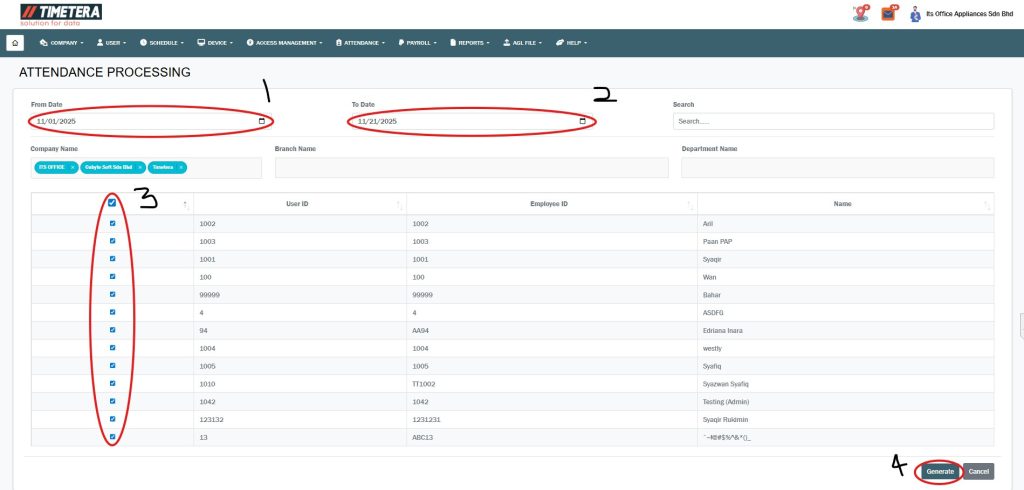
Step 4 : Generate Attendance Processing #
- Select the Date From.
- Select the Date To.
- Select the User.
- Click Generate.
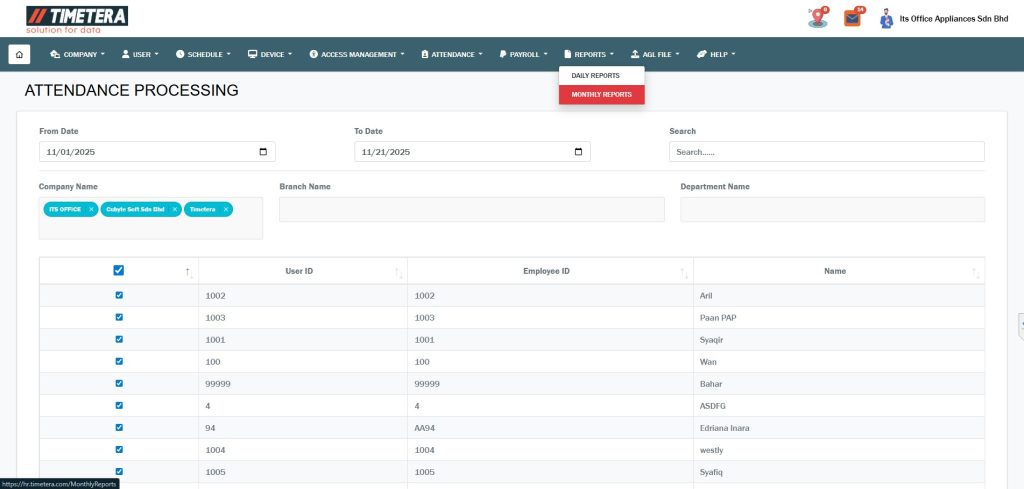
Step 5 : Open Monthly Reports #
Go to :
Reports > Monthly Reports.
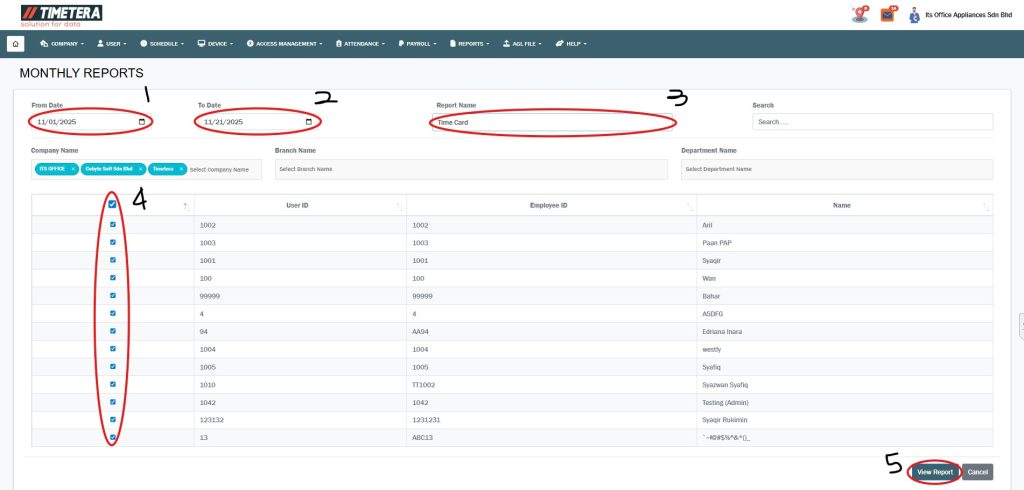
Step 6 : Generate the Monthly Report #
- Select the Date From.
- Select the Date To.
- Choose the report name “Time Card”.
- Select the User.
- Click View Report.
Step 7 : Export or Print the Report #
- 1) Choose the desired format (PDF / Excel / Word) to export the report.
- 2) Select Print to print the report directly.
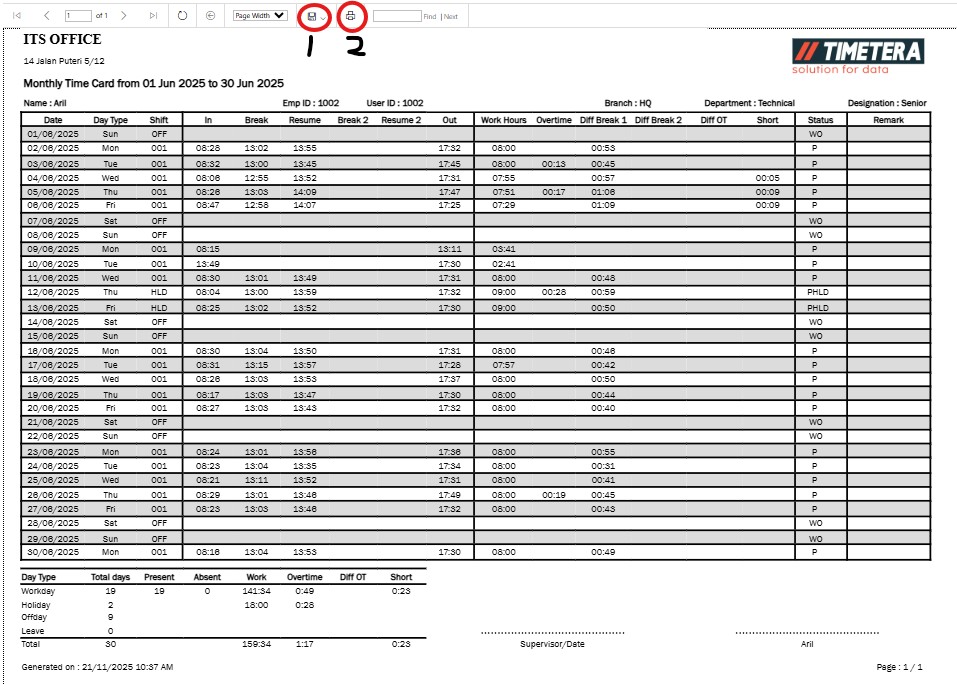
By following these steps, you can efficiently generate and export the attendance report.